

On this page:

Quick Setup
Before you begin
1
Make sure you have the following:
- A My Manitoba health card account
- The MB Wallet app installed on your mobile device. The MB Wallet can be downloaded from the App Store or Google Play.
2
Set Up Your PIN on MB Wallet
- When you open MB Wallet for the first time, you will be prompted to create a six-digit PIN.
- It is important to remember your PIN.
- If you forget it, you will need to delete the app and start over to protect your information.
- After setting up your PIN you will be prompted to create fingerprint or face recognition for quick and secure access.
Now that you have the MB Wallet set up on your device, you can download your digital health card.
Request your digital health card
1
Start the request
- Choose the "Replacement Card" option on your My Manitoba health card account.
2
Complete the online form
- Fill in all required fields using your current information.
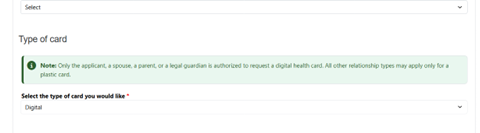
- In the “Type of Card” section choose “Digital” from the dropdown menu.
3
Submit
- Submit your completed form. It may take up to 2 hours for your digital card to be available.
Accessing your digital health card
1
Sign in to your My Manitoba Health Card account.
2
Navigate to My Digital Invitations in the top right corner.
3
Under Ready to Download, click Download Here below your name.
4
A QR code will appear. Open MB Wallet and scan the QR code. If you are on a mobile device, tap the link below the QR code to open it directly in MB Wallet.
5
The final step is to accept your card.
- After you scan the QR code your MB Wallet will show a new offer. Tap to view and accept it.
- Your Manitoba Digital Health Card will now appear under the Credentials tab.
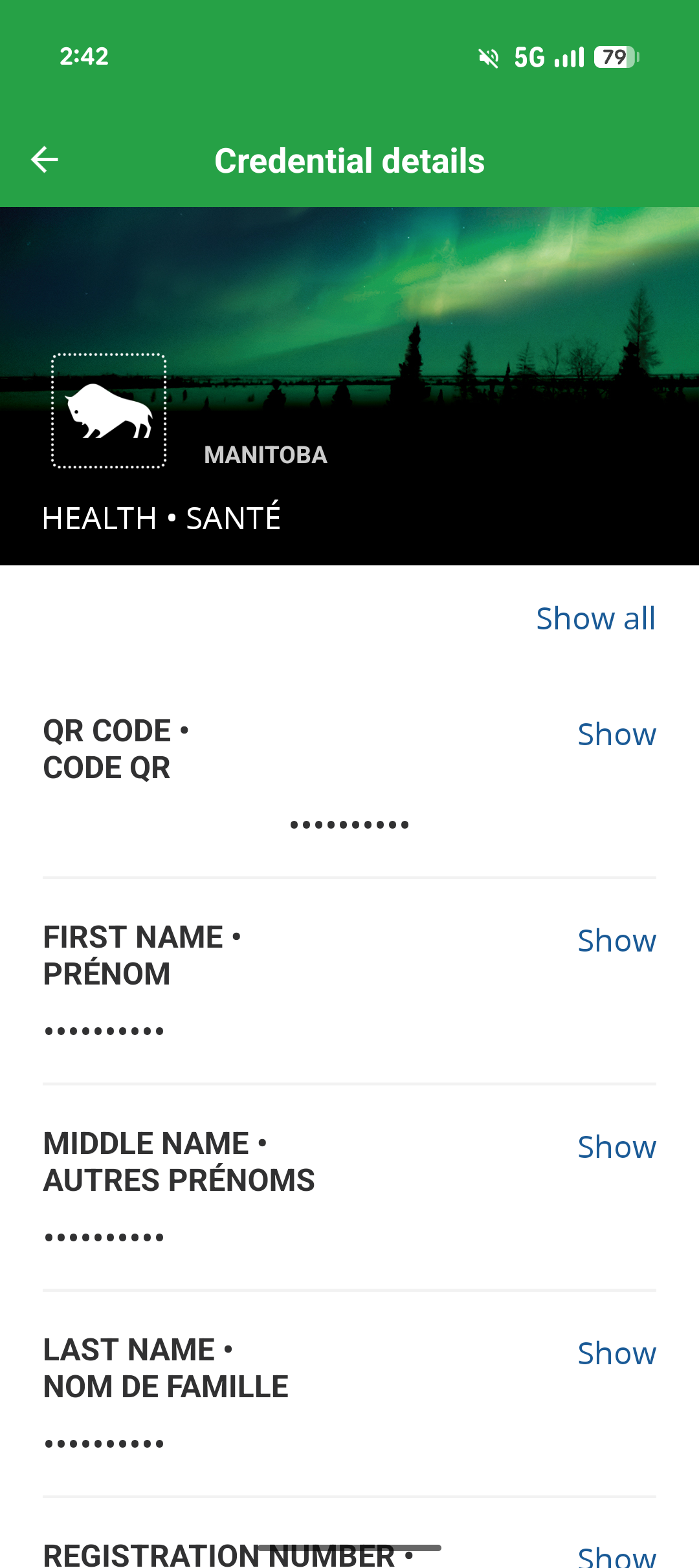
- Tap the card the view details and your live QR code.
Full Setup Guide
A more detailed guide is available to help walk you through the process.
Set up your My Manitoba Health Card Account
- Go to your "My Manitoba Health Card" Account.
- Choose your card type: digital, plastic or both.
- Complete your application.
- Verify your identity.
- Create or sign in to your portal account.
Download your MB Wallet
- Download the app from the App Store (iOS) or Google Play Store (Android).
- Create a six-digit PIN.
- Enable biometric login (fingerprint or face recognition).
Receive your digital card
- Receive your confirmation email.
- Download your digital invitation in your "My Manitoba Health Card" account.
- Accept the health card offer in MB Wallet.
What is your “My Manitoba Health Card” account?
Your “My Manitoba Health Card” account allows you to apply for a digital and plastic Manitoba health card. Once signed in, you will see your personalized profile page where you can manage digital invitations for the digital health card and submit updates to your Manitoba health card.
1
Navigate to your “My Manitoba Health Card” account
- Go to your “My Manitoba Health Card” account.
https://healthcardweb.manitoba.ca
2
Two-factor authentication
- Choose your preferred method of two-step verification:
- Text Message or Phone Call
- Microsoft Authenticator App is the preferred multifactor authentication app (if you do not have phone service, this option only requires internet connection)
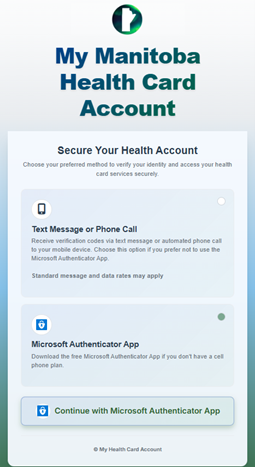
- Click Continue
3
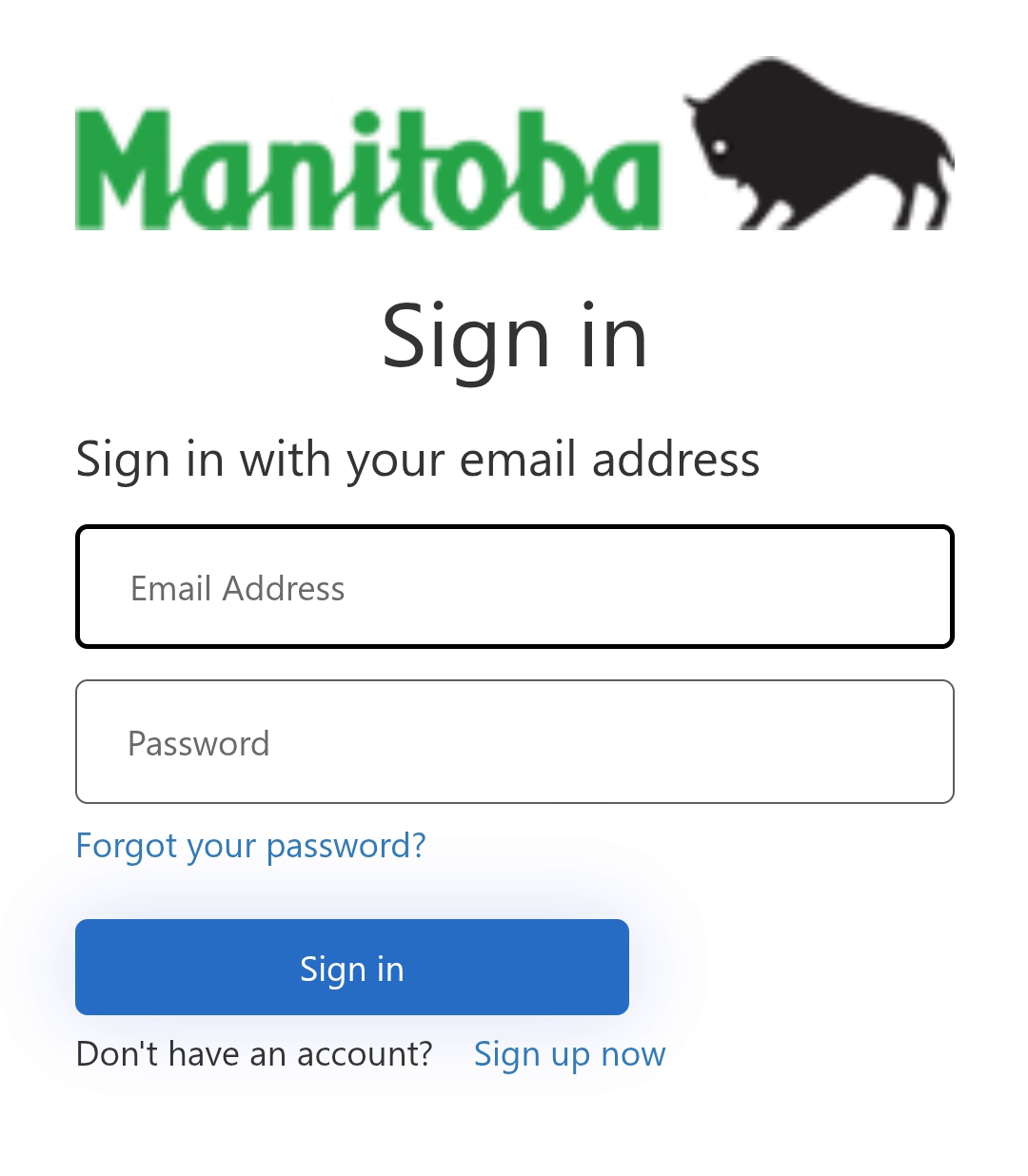
Sign In/Sign Up for “My Manitoba Health Card” Account
- If you are applying for the first time, click “Sign Up Now”.
4
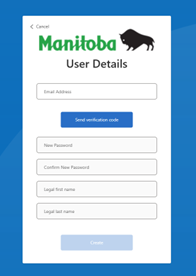
Email Verification
- Enter your email address. This email will be used to sign into your account going forward.
- Click “Send Verification Code.”
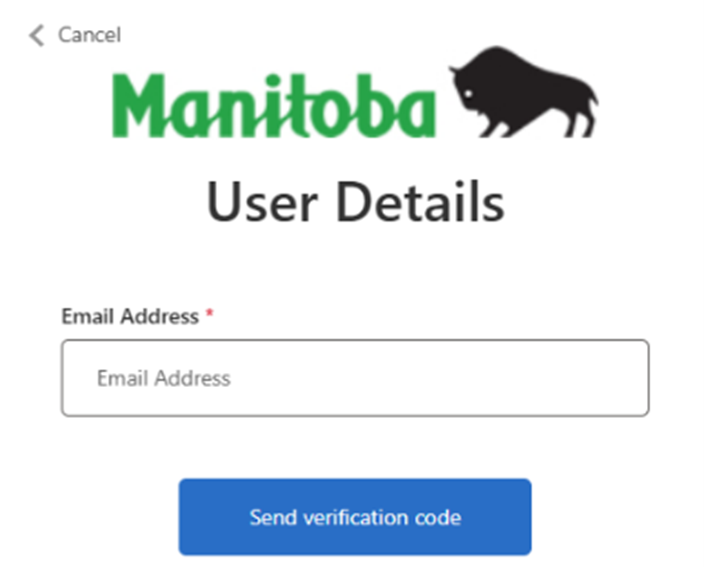
- Check your email for the code and enter it in the portal to verify.
5
Create a Password
- Create a password (six to eight characters).
- Enter your:
- Legal first name
- Legal last name
- Click “Create.”
6
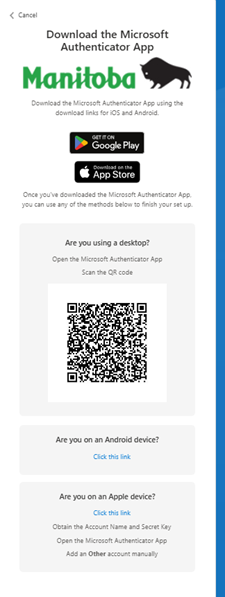
Download the Microsoft Authenticator App
- To install the software on your mobile device, use the appropriate link below:
- Apple: https://support.microsoft.com/en-us/account-billing/download-microsoft-authenticator-351498fc-850a-45da-b7b6-27e523b8702a#id0ebbj=ios
- Android: https://support.microsoft.com/en-us/account-billing/download-microsoft-authenticator-351498fc-850a-45da-b7b6-27e523b8702a#id0ebbj=android
- Follow the prompts on your mobile device to download and install the app.
7
For Account Set Up on a Desktop
- Open the Microsoft Authenticator App on Mobile Device.
- Choose your privacy setting and tap “Continue”.
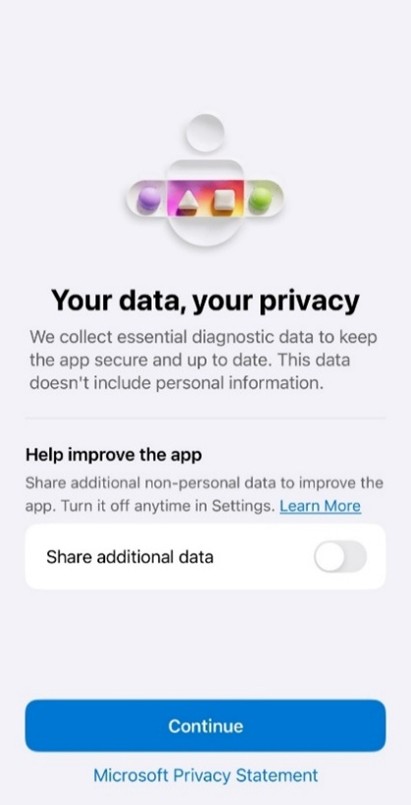
- Tap “Scan QR code” to add your My MB Health Card Account.
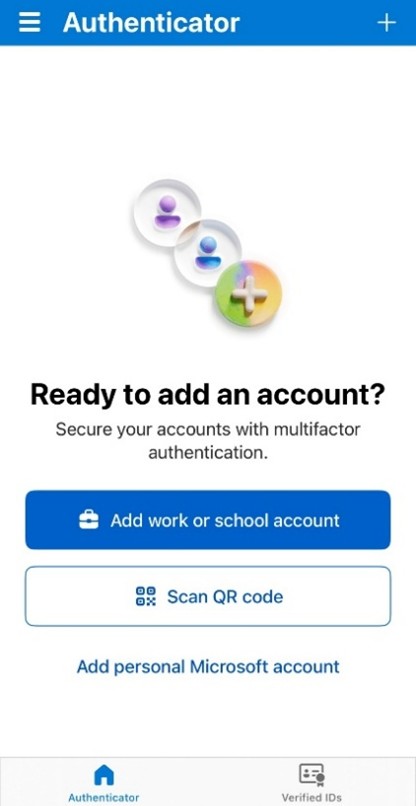
- You may see a pop up asking for permission to access your camera. Tap “Allow”.
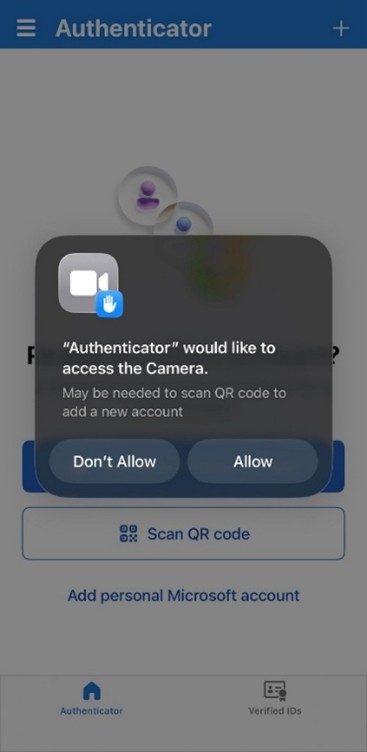
- Use your mobile device to scan the QR code displayed on your computer screen.
8
For Account Set Up on a Mobile Device
Android:
- If you are using an android device, select the Android link.
- This link will connect you automatically to your Microsoft Authenticator App.
- Tap “Add account”.
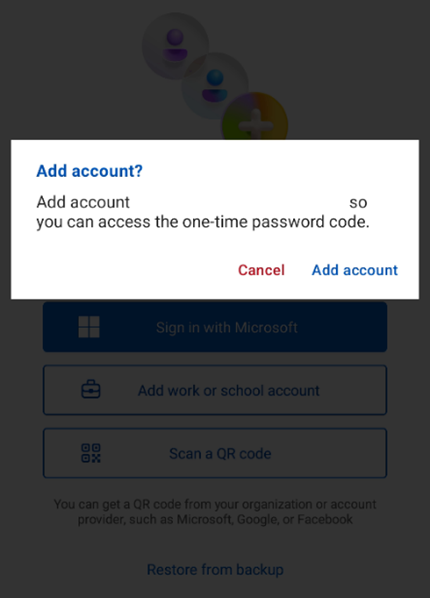
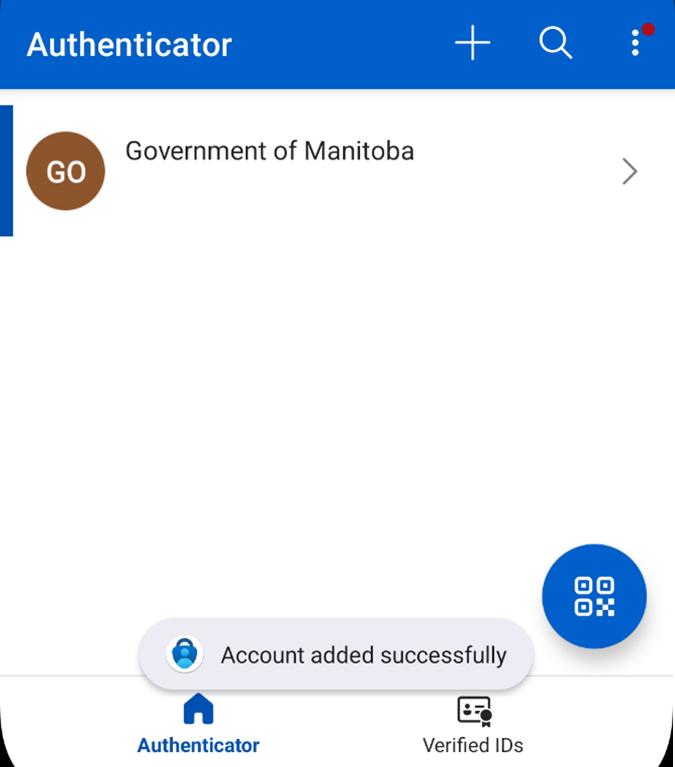
- You will see confirmation that your account has been added successfully.
Apple:
- If you are using an apple device, select the Apple link.
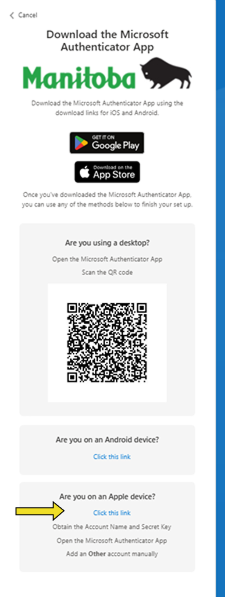
- Your Account Name and Secret Key will appear; this information will allow you to manually link your account.
- Open the Microsoft Authenticator App on your mobile device.
- Choose your privacy setting and tap “Continue”.
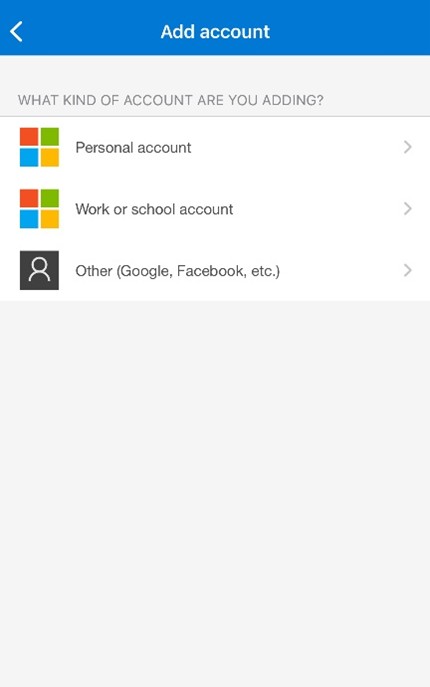
- Tap “+” in the top right corner of the screen.
- Tap “Other”.
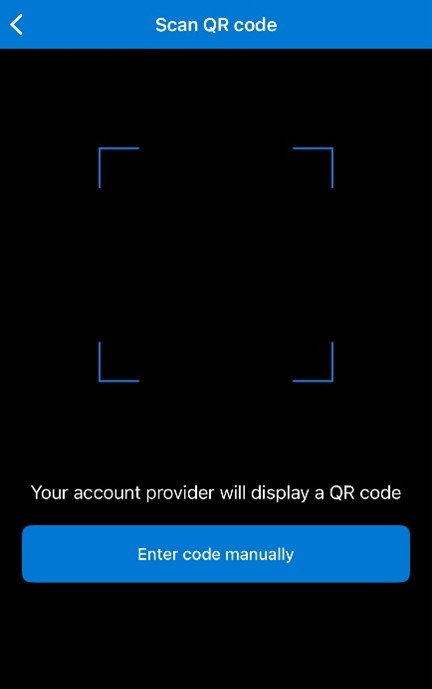
- Tap “Enter code manually”.
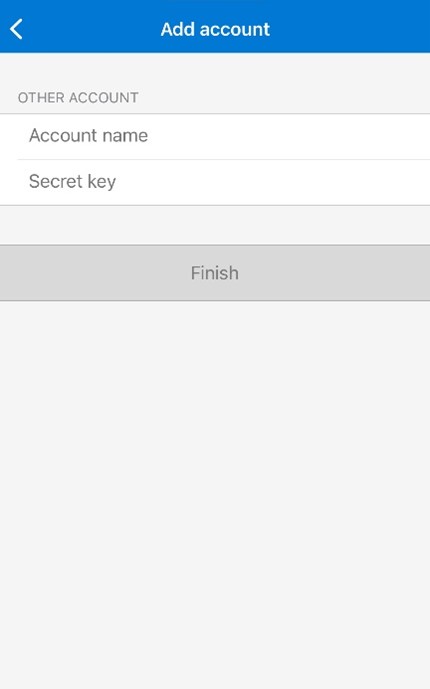
- Enter your Account Name and Secret Key information.
- Tap “Finish”.
9
Confirm Your Account Has Been Added
- After adding your account, the Microsoft Authenticator app will return to the main screen.
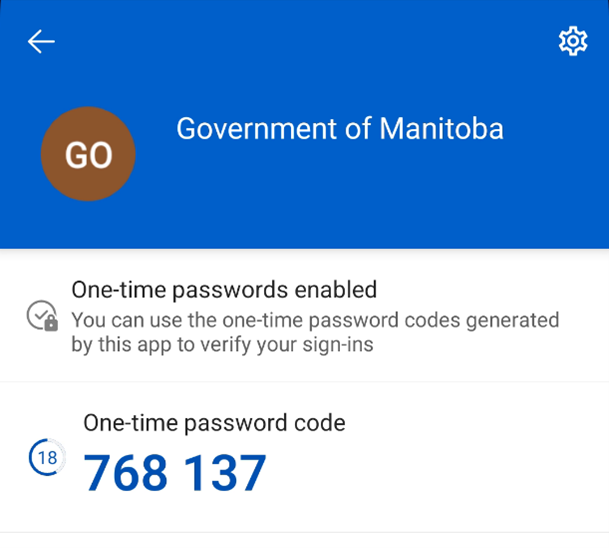
- You will now see your newly added account listed, tap on your Government of Manitoba account.
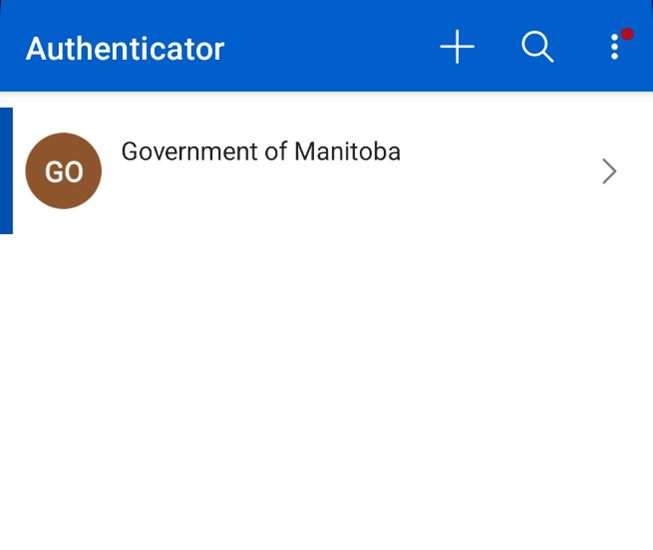
- A 6 digit verification code will appear and refresh every 30 seconds.
10
Enter the Verification Code in Webpage
- Go back to your account setup webpage on your computer or mobile device.
- Type the 6 digit code shown in your Microsoft Authenticator app into the box.
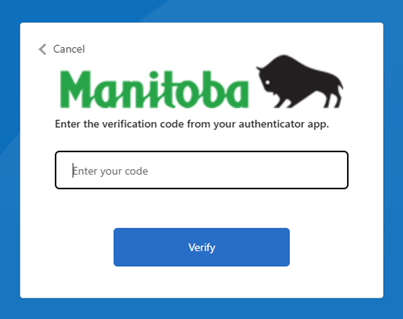
- Tap “Verify” to complete your account.
11
Your Profile Page
Once signed in, you will be directed to your profile page.
Here, you can update your first and last name on your profile.
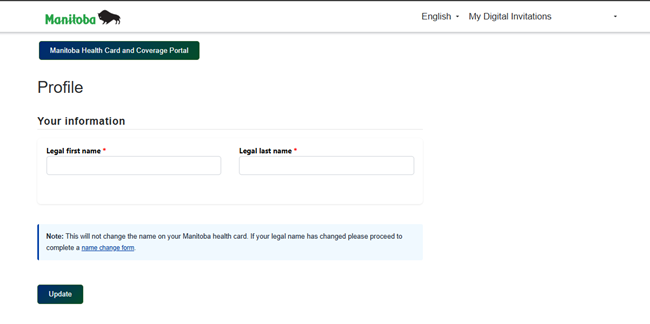

Important: Changes made here are for your “My Manitoba Health Card” profile only.
To officially update your Manitoba Health Card, you must submit a request through the online forms available in your “My Manitoba Health Card” account.
1
Log in to Your My Manitoba Health Card Account
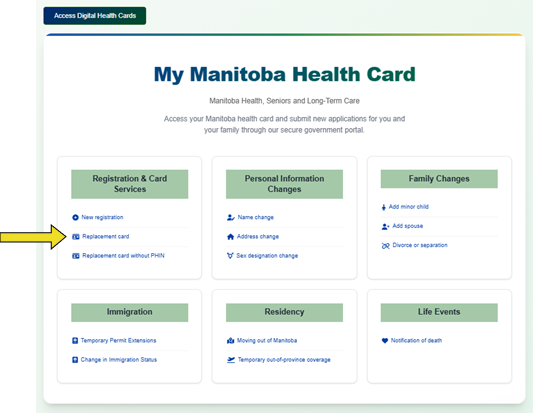
- Access your account and select “Replacement Card” from the available services.
2
Start the Replacement Card Request
- Choose the Replacement Card option to begin your application.
3
Complete the Online Form
- Fill in all required fields using your current information.
4
Select Card Type
- In the “Type of Card” section: Choose “Digital” from the dropdown menu.
1
Log in to Your My Manitoba Health Card Account
- Access your account and select “Replacement Card” from the available services
2
Start the Replacement Card Request for your Minor Child
- Choose the Replacement Card option to begin your application.
3
Complete the Online Form
- Fill in all required fields using your current information.
4
Select Card Type
- In the “Type of Card” section: Choose “Digital” from the dropdown menu.
Important:
Only the applicant, a spouse, a parent, or a legal guardian is eligible to request a digital card. Others must select “Plastic”.
1
Log in to Your My Manitoba Health Card Account
- Access your account and select “Replacement Card” from the available services.
2
Start the New Registration Application Request
- Choose the New Registration Application to begin your application.
3
Complete the Online Application Form
- Fill in all required fields using your current health card information.
4
Select Card Type
- In the “Type of Card” section: Choose “Digital” from the dropdown menu.
What is MB Wallet?
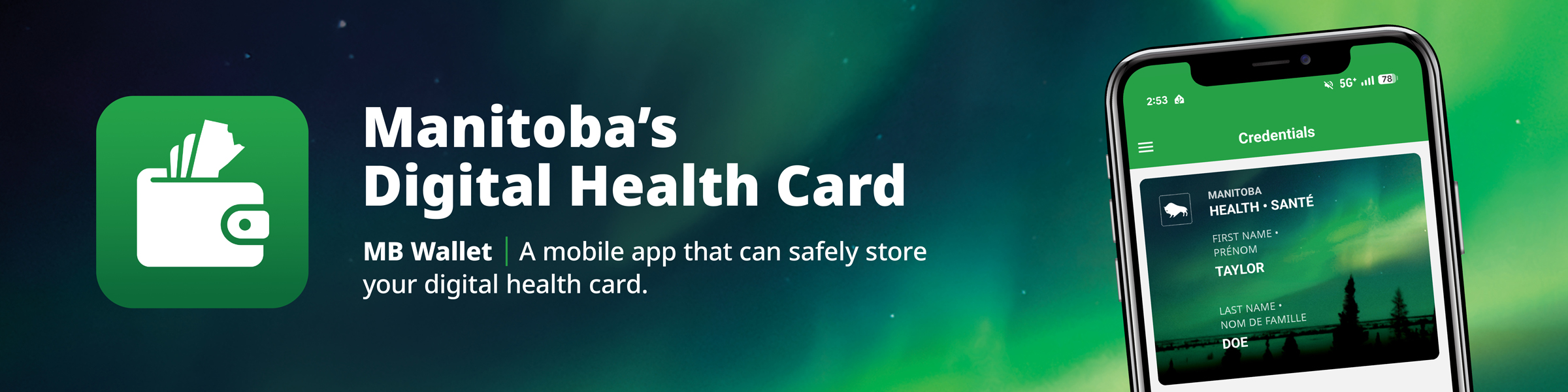
MB Wallet is a mobile app that runs on smartphones and tablets. It is a secure wallet that can safely store your digital health card.
1
Download the MB Wallet App
- Open the App Store (iOS) or Google Play Store (Android) on your smartphone or tablet.
- Apple: https://apps.apple.com/ca/app/mb-wallet/id6738668460
- Android: https://play.google.com/store/apps/details?id=ca.mb.gov.MBWallet&pli=1
- Search for “MB Wallet.”
- Click “Get” or “Install” and follow the on-screen prompts to download the app to your device.
2
Open the App
- Once installed, locate the MB Wallet icon on your home screen.
-
Tap the icon to launch the app.
(iOS)
(Android)
3
Set Up Your PIN
- You will be prompted to create a six-digit PIN.
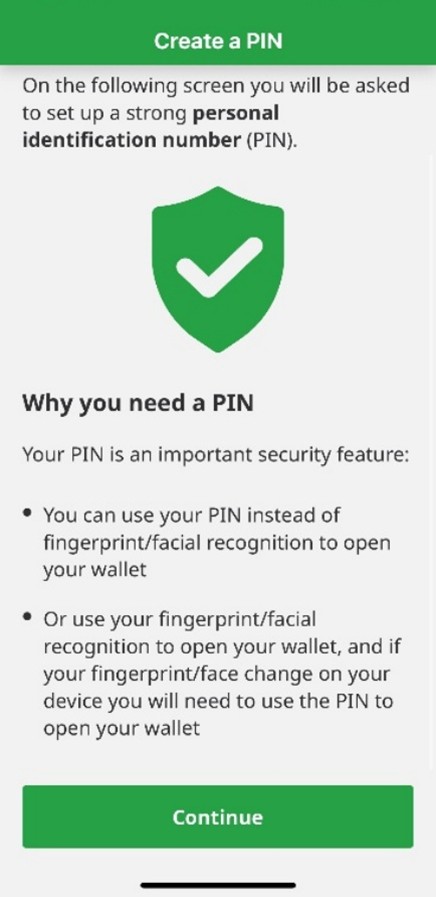
- Enter your chosen PIN and confirm it.
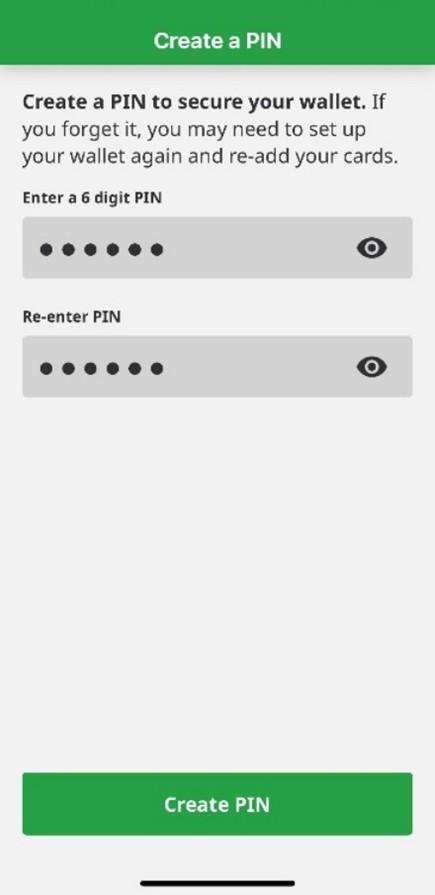
- This PIN will be used to receive your wallet securely.
- It is Important to remember your PIN: If you forget it, you will not be able to access your account, and you will need to go through the process again from the start.
4
Enable Fingerprint or Face Recognition
- After setting your PIN, you will be prompted to enable biometric authentication.
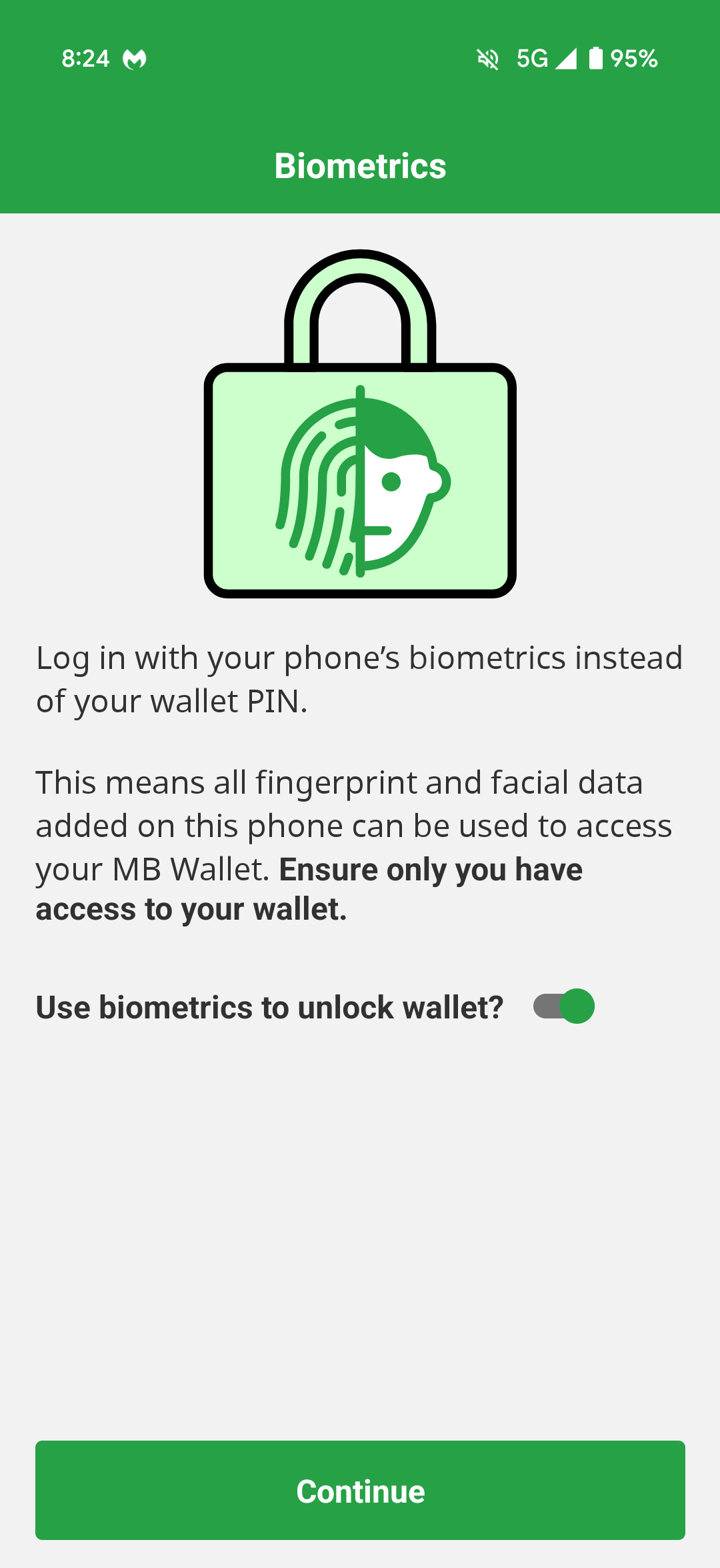
- Follow the on-screen instructions to register your fingerprint or face recognition.
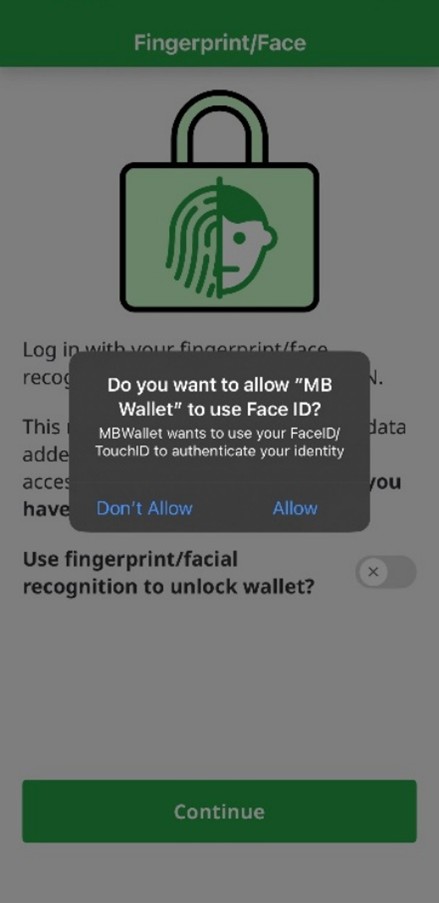
- This allows for quick and secure access to the wallet without entering your PIN each time.
1
Email Confirmation
- If you have applied for a Manitoba health card for the first time, when your application is approved, you will receive a confirmation email with instructions to receive your Manitoba Digital Health Card.
- If you already have a physical health card and complete the application for a digital health card correctly, your digital health card should be available within 2 hours.
- A link to log into your “My Manitoba Health Card” account will be available in the confirmation email.
- Use the link provided to log into your “My Manitoba Health Card” account.
2
Prepare Download Invitation
- Once logged into your “My Manitoba Health Card” account.
- Navigate to “Access Digital Health Cards”.
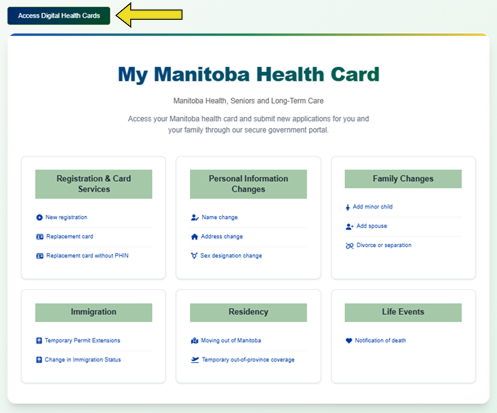
- Scroll to the “Ready to Download” section.
- Under “Digital Health Cards ready to download”, locate your card.
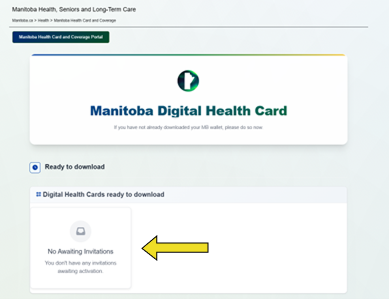
- Click the “Download here” below your name.
3
Scan QR Code
Once you have clicked “Download here,” a QR code will be generated for your digital health card.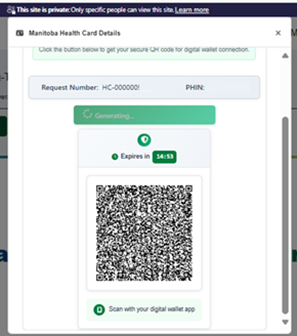
- If you are using a PC or laptop:
- Open the MB Wallet app on your mobile device.
- Use the app to scan the QR code displayed on your computer screen.
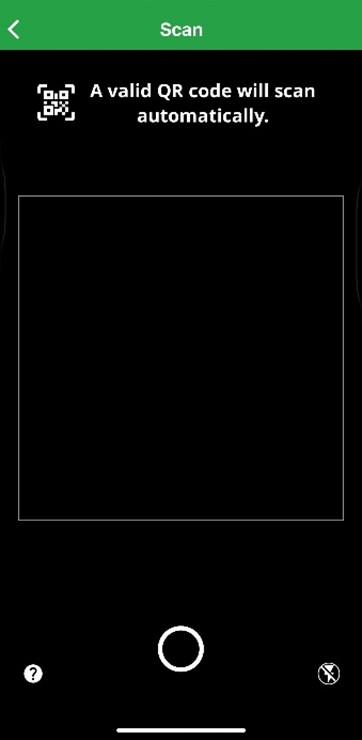
- This QR code will regenerate every 15 minutes
Important:
Your digital invitation will expire after 30 days. If your invitation expires, you will need to resubmit your request.
- If you are using a mobile device or tablet:
- Click the link below the QR code to open it directly in the MB Wallet app.
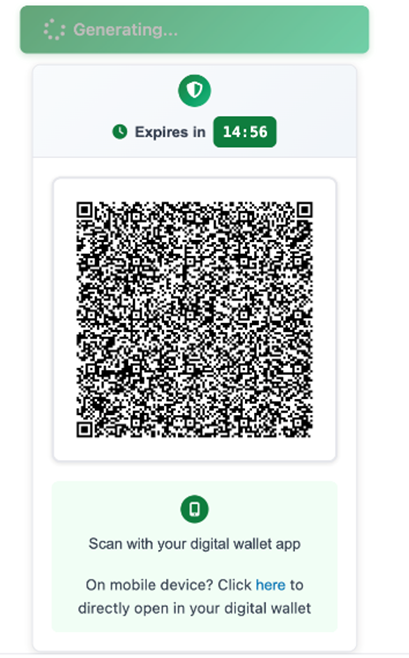
- Follow the prompts to activate your card.
4
Accept your Digital Health Card
After scanning the QR code, your MB Wallet app will receive a notification with a new health card offer.
- Open MB Wallet app
- Look for the message titled “New credential offer.”
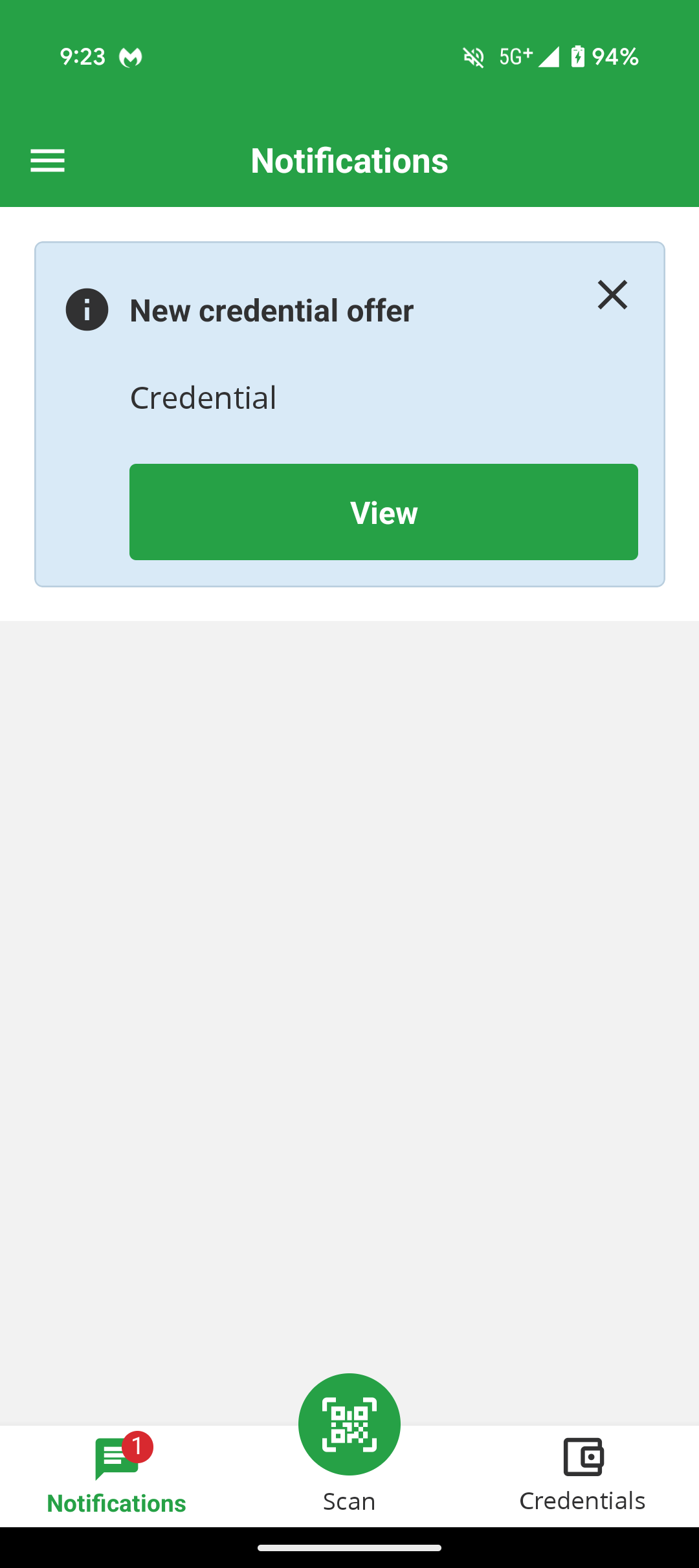
- Tap the “View” button to open the health card details.
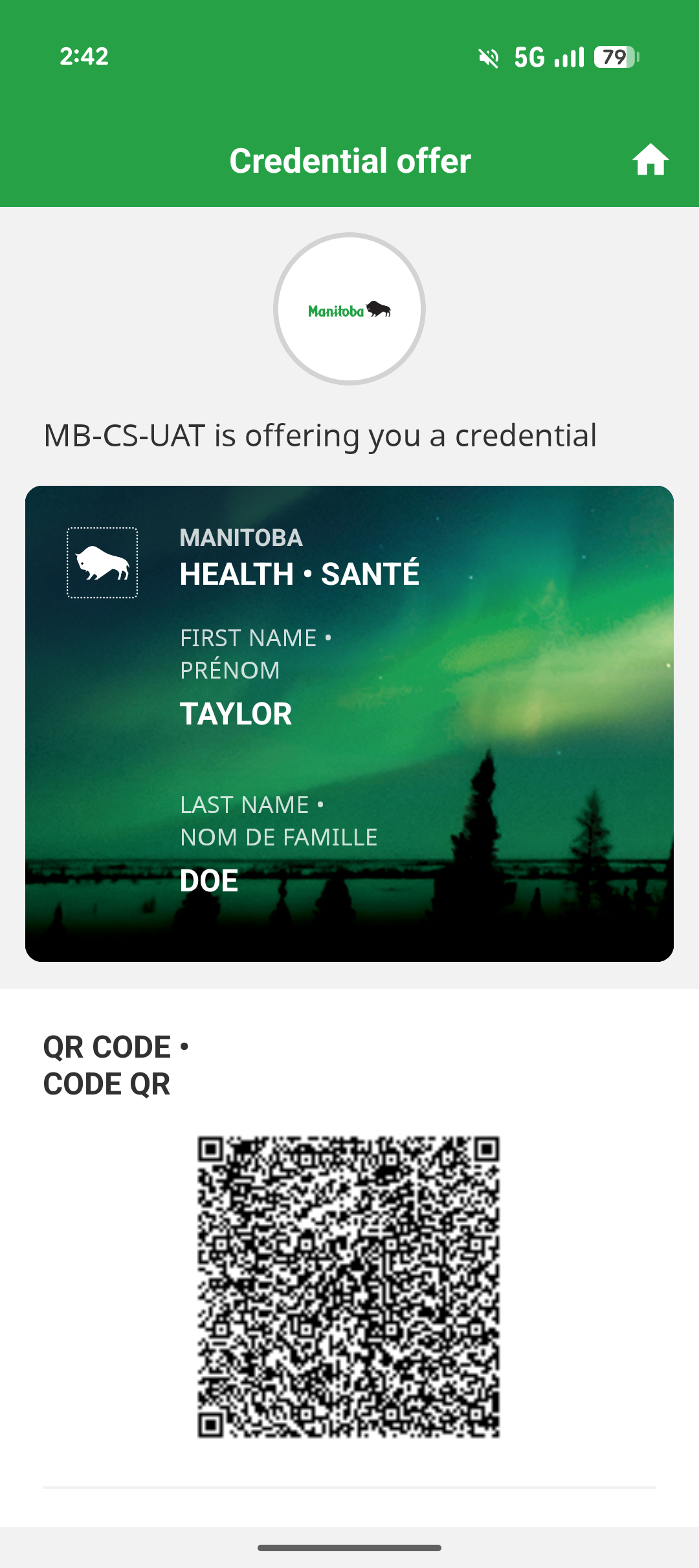
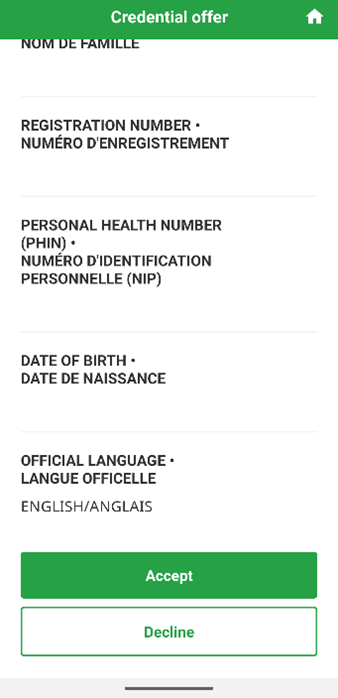
- Scroll down and click “Accept.”
- Once accepted, you’ll see a message that says “Credential added to your wallet.”
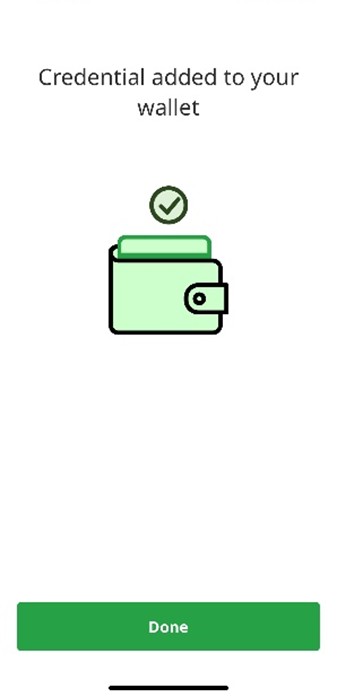
- Tap “Done” to complete the process.
5
Confirm Your Digital Health Card is Active in MB Wallet
- Navigate to the “Credentials” tab at the bottom of the screen.
- You should now see your Manitoba health card displayed with your first and last name.
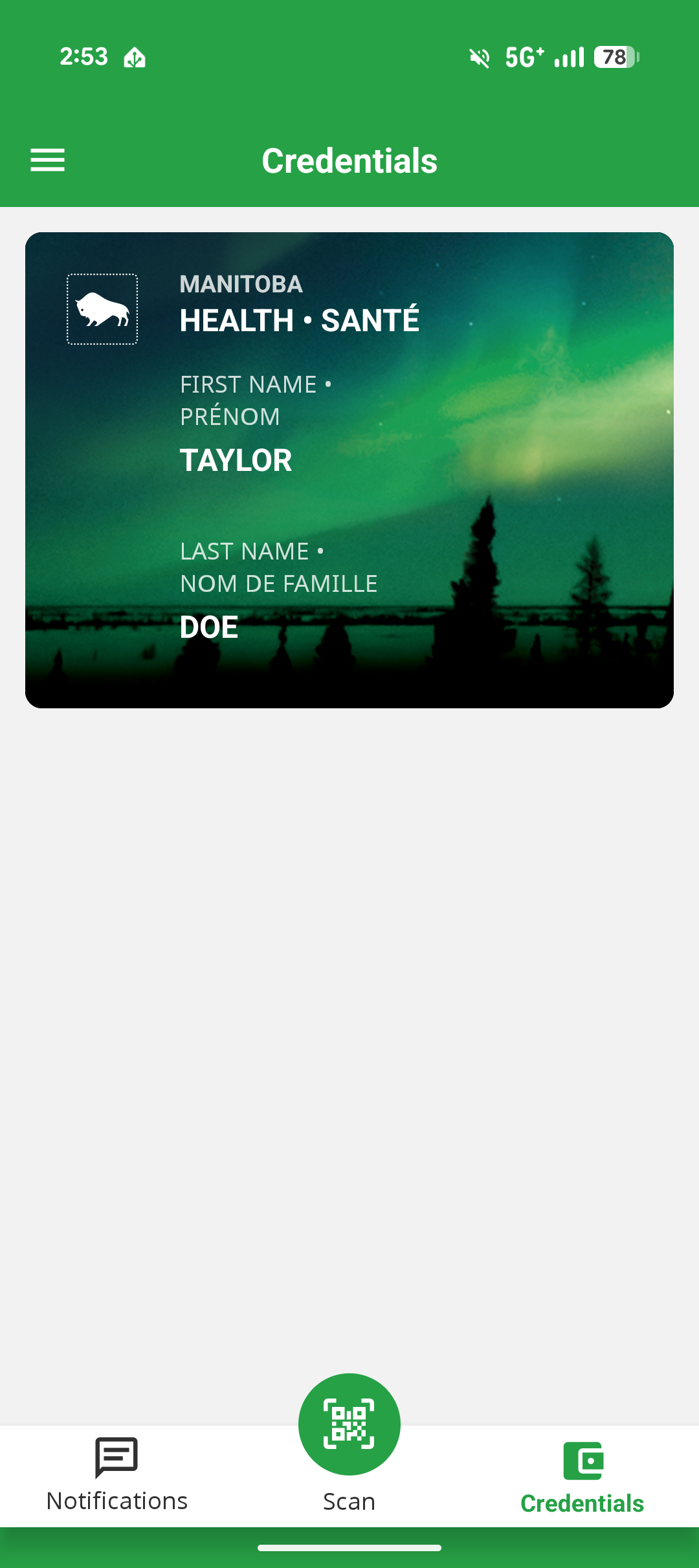
- Tap on the card to view more information.
6
Confirm Your Download in Your Manitoba Health Services Portal Account
- First, login to your “My Manitoba Health Card” account.
- Navigate to “My Digital Invitations” in the top right corner.
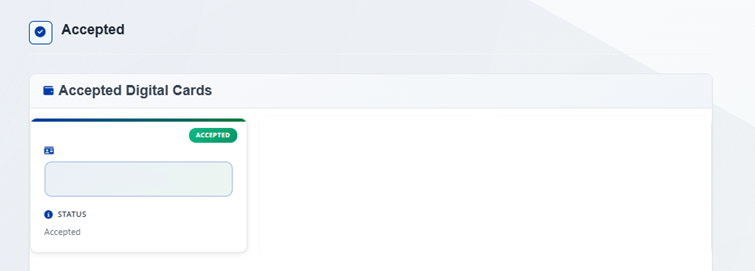
- Scroll to the “Accepted” section.
- Your digital health card should appear under the “Accepted Digital Cards” section.
Update Your Manitoba Health Card
- Click the “Manitoba Health Card and Coverage Portal” button at the top left.
This will take you to a list of available forms.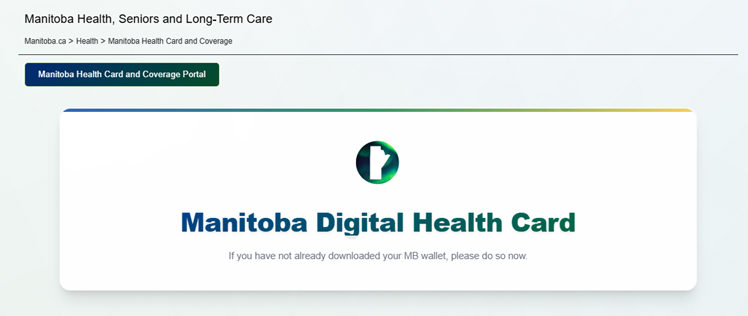
- These forms will allow you to request a replacement card, update your existing card, submit an application for a dependant, or request temporary out of province coverage.
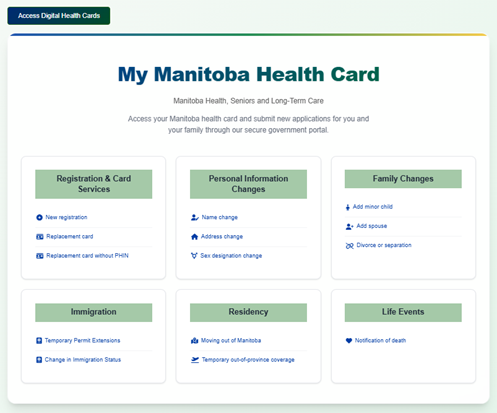
- Click the button of the form you wish to update and proceed with your application.
Change or Reset Your Password
- Navigate to your “My Manitoba Health Card” account.
- Choose your preferred method to verify your identity.
- Click “Continue.”
- Once you have reached the sign in page, click “Forgot your Password.”
- Type in your email address.
- Click “Send verification code.”
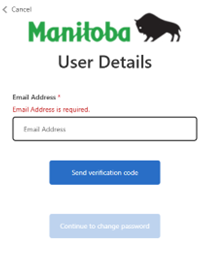
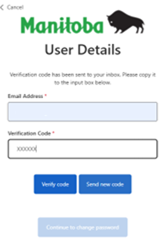
- Open your email inbox and find the verification code.
- Enter the code on the User Details page and click “Verify code.”
- You will see a message that your email is verified.
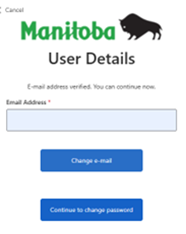
- Click “Continue to change password.”
If you selected Text Message (SMS) or Phone Call:
- Text Message (SMS):
- Click “Send Code.”
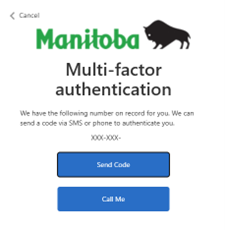
- A verification code will be sent to your phone number.
- Enter the code in the field provided and click “Verify Code.”
- Phone Call:
- Click “Call Me.”
- You will receive a call at the same number with your verification code.
- Enter the code in the field provided and click “Verify Code.”
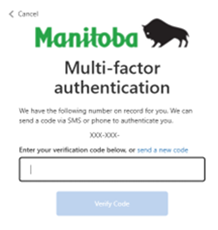
- You will be redirected to the User Details screen.
- Enter and confirm your new password.
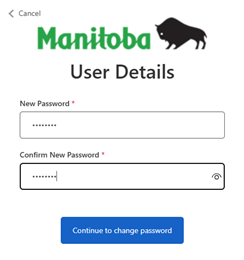
- Click “Continue to change password.”
- You will be signed in and redirected to your “My Manitoba Health Card” account.
If you selected Microsoft Authenticator:
- Open your Microsoft Authenticator app.
- Enter the code shown into your “My Manitoba Health Card” account log in.
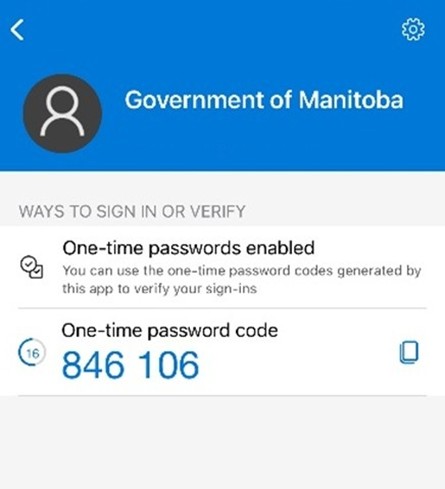
- Click “Verify.”
Change Your Language Preference to French
If you would prefer to use your “My Manitoba Health Card” account in French, you can easily switch your language settings.
- Go to the top right corner of your “My Manitoba Health Card” account.
- Click on the language dropdown menu labeled “English.”
- Select “français” from the list.
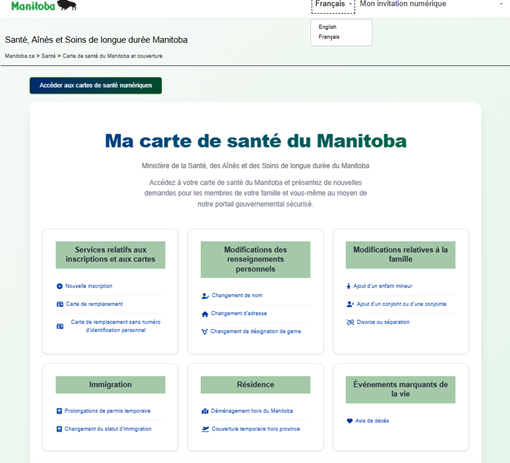
- The webpage will reload in French, allowing you to continue your application or view your digital health card in your preferred language.
Active Invitation Error Code
Before proceeding with any new health card offers, make sure to check your MB Wallet for any pending invitations.
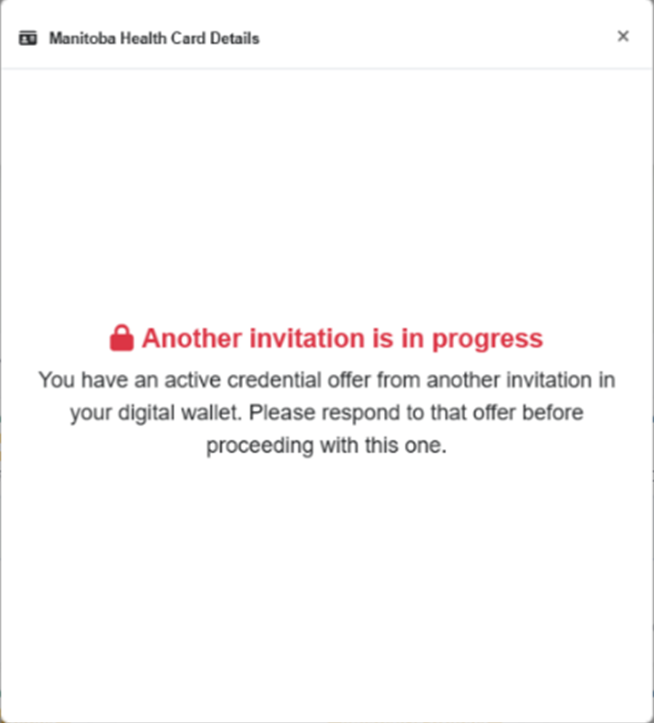
If you receive this error code, you must:
- Open the MB Wallet app.
- Look for any active digital health card offers that have not been accepted yet.
- Tap on the invitation and follow the prompts to accept or deny it.
- You must respond to any existing offers before new ones can be processed.
How to Change or Reset Your PIN
- Launch the MB Wallet on your mobile device.
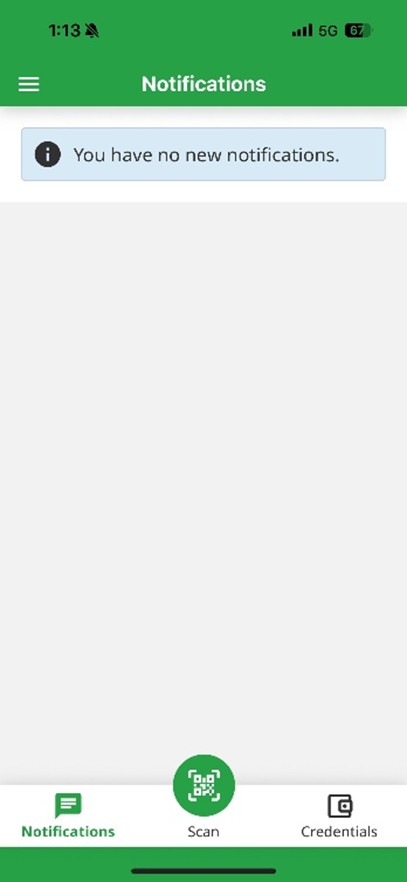
- Tap the three horizontal lines in the top left corner of the screen.
- In the menu, scroll to the “App settings” section.
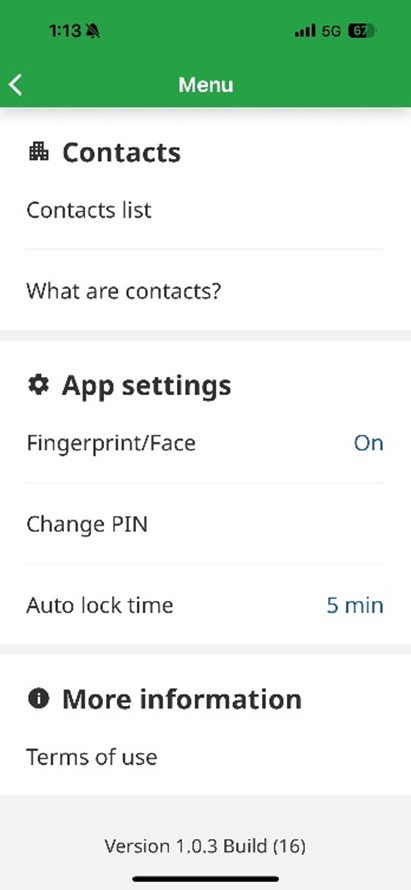
- Tap on “Change PIN.”
- You will be taken to the Change PIN screen.
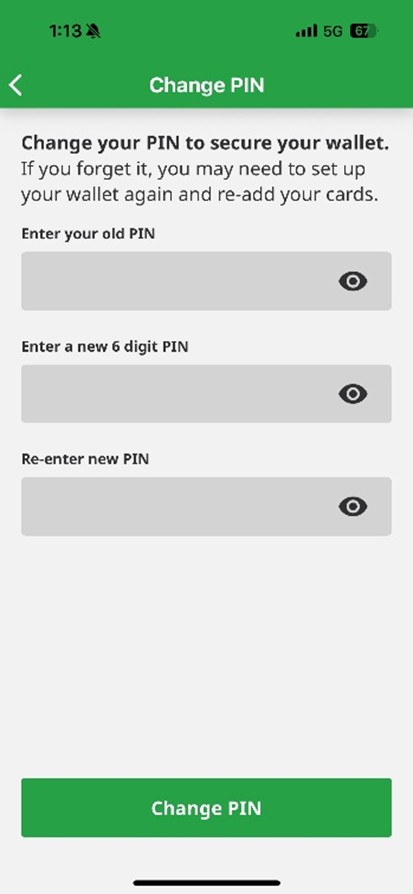
- Enter the following:
- Your old PIN
- A new six-digit PIN
- Re-enter the new PIN to confirm
- Tap the “Change PIN” button to save your new PIN.
Important: Lost PINs cannot be recovered
If you have forgotten your PIN for your MB Wallet, you will need to delete the app and set up a new account. This process ensures that only you can receive your digital health card and protects your personal information.
Change Your Language to French
Your MB Wallet will display in French if the language of your smartphone or tablet is French. If your phone is set to any other language, the app will default to English
To receive technical assistance or ask questions about your “My Manitoba Health Card” account or your MB Wallet, please contact Manitoba Health, Seniors and Long-Term Care, Insured Benefits Branch.
Phone: 204-786-7101
Toll Free: 1-800-392-1207
Website: Update or Replace Your Manitoba Health Card | Health | Province of Manitoba
The full guide is also available as a PDF:
FAQs
In this section:
Digital Health Card
Setup & Eligibility
The Manitoba Digital Health Card is a digital version of the Manitoba Health Card and is stored in the MB Wallet.
All Manitoba residents that have an active Personal Health Identification Number (PHIN) can request a digital health card.
If you choose to do so, you can keep your physical health card which remains valid and can serve as an additional option to your digital health card.
No, this functionality is not supported currently. Please check back for future enhancements.
Right now, a child’s digital health card can only be stored on one parent or guardian’s device.
This approach was chosen for the first phase of the program to make sure we start with the highest levels of security and privacy. It also helps us respect situations where there may be shared or complex custody arrangements, ensuring the child’s information stays protected and is only shared in a controlled way.
Yes, individuals who are 16 years of age may request their own digital health card. Please note that only one active digital health card can exist at a time for each individual. If a parent or guardian currently has the dependents digital health card stored in their wallet, it will be automatically revoked once the dependent downloads their own card.
Yes. Parents can keep their own digital health card in MB Wallet, along with their spouse’s and their children’s cards. Each digital card can only be stored in one MB Wallet at a time, so if you keep your spouse’s or child’s card, you are the sole carrier of that card.
If you are requesting changes to your current health card, many of those will need to be done separately from applying for a new digital card. At this time, you cannot request a digital card if you are submitting one of the following forms:
- addition of spouse
- divorce or separation
- addition of minor
- change of sex designation
Once those requests are processed, you can then complete a Replacement Card Request Form, which will give you the option to receive a digital health card.
Security & Privacy
Your Digital Health Card is protected in several ways to keep your information safe:
- Stored securely on your device: The card is saved in a protected part of your phone, not online, so only you can access it.
- Officially approved by Manitoba Health, Seniors & Long-Term Care: When you add your card to MB Wallet, the department confirms it's real by attaching a secure digital stamp. This helps ensure the card has not been changed or faked.
- Tamper detection: If someone tries to alter the card, digital systems can tell it’s been tampered with.
- Locked behind your phone’s security: You need to use your phone’s PIN, fingerprint, or facial recognition to open MB Wallet, adding another layer of protection.
Together, these features help make sure your health card is both secure and trustworthy.
If your phone is lost or stolen, your health card in the MB Wallet is protected by an encryption, and the unique PIN created when the app was installed. You can request a replacement health card Update or Replace Your Manitoba Health Card | Health | Province of Manitoba
MB Wallet does not store medical records; it only stores the digital health card.
MB Wallet prevents screenshots to reduce the risk of fraud and sharing of digital health information.
The MFA options available for the My Health Card Account include a call or text message and the Microsoft Authenticator app. The Microsoft Authenticator app is the authenticator supported by the Government of Manitoba. However, if you prefer to use a different authenticator, there are many options that work similarly to the Microsoft Authenticator including Google Authenticator, Duo Mobile as well as password management tools, like the Apple Passwords app in iOS, 1Password, LastPass, etc. also provide MFA features.
When accessing the My Health Card Account from an iOS device and select link to use the MFA app or if you used the iOS camera to scan the MFA setup QR code the Apple Passwords app will be opened by default. While this is a different app than is recommended on the My Health Card Account site, the Passwords app is safe, secure, and provides MFA functionality required to ensure privacy. Just remember if you protected your account with Apple Passwords, that the next time you wish to sign in, that you will need to use your Passwords app instead of Microsoft Authenticator.
You also have the option of receiving a call or text with a code to authenticate your account.
Special Situations
Please return to the Manitoba Health Card and Coverage | Health | Province of Manitoba to submit the relevant forms to change your name or other personal details. This will trigger your digital health card to be revoked, and you will be notified when the new digital health card will be ready for you to download.
No, if you have already created a login for the Manitoba Security Rebate portal, you can use the same login to access the My Manitoba Health Card portal. There is no need to register again.
You may request a Digital Health Card for a person who shares the same registration number as you and carry their digital health card in your wallet, however if you are requesting a health card on behalf of someone else that does not share the same registration number as yours, you will only be eligible to request a plastic health card as a digital health card is not available.
The digital health card is recognized as an official provincial health card and may be presented when accessing medical services outside of Manitoba. However, the QR code included on the card is only functional within Manitoba and may not be scannable in other provinces or territories.
The digital health card will have an embedded QR code that enables participating healthcare providers to scan the name, date of birth, PHIN and registration number from the health card, just like the QR code on the back of the plastic card.
Yes, you’ll need to request a new digital health card when you switch to a new phone. Even if it’s the same brand (for example, moving from one iPhone to another with the same Apple ID), the digital health card doesn’t automatically transfer. Think of it like a boarding pass: it works on the device you first download it to, but if you change phones, you’ll need to request a fresh copy. The process is quick and simple, and you’ll be back up and running in no time.
No. For your security, the Digital Health Card can only be accessed through the MB Wallet app on your mobile device.
This design helps protect your personal health information. The card is stored securely on your device—not online—and is only accessible after unlocking the app using your phone’s PIN, fingerprint, or facial recognition. This ensures that only you can view or use your card, and it reduces the risk of unauthorized access that can happen with web browsers.
MB Wallet
MB Wallet is a digital app that securely stores and manages your personal information, such as your Manitoba Digital Health card. MB Wallet enables you to present your card information to third parties in a secure, private way.
MB Wallet requires a six-digit PIN to secure access to MB Wallet and the information stored within. MB Wallet`s PIN is independent from the PIN/passcode used to secure the mobile device.
Unlike Google Wallet or Apple Wallet, which primarily store payment cards, tickets, boarding passes, and loyalty cards, MB Wallet stores health card information that can be verified by third parties. This information is secure, tamper-proof and can be trusted by recipients.
MB Wallet can be installed on Android and Apple tablets and smart phones. It is supported on Android 7 and higher, and iOS 12.0 and higher.
You will need to ensure that the app can use your camera if scanning QR code invitations from desktop or laptop screen.
You should enable Face and Fingerprint, if available, to secure your MB Wallet and ease the sign-in process.
MB Wallet can be installed on your device from the Apple App Store or Google Play Store. Once installed, you can request your Digital Health Card from the Manitoba Health Card Account and use the digital health card just as you do your physical health card.
Yes, MB Wallet ensures that your information is securely stored and transmitted. Only you have access to your personal information, and you can control who sees it.
While you need an internet connection to initially download and set up your wallet, and to receive your digital health card, MB Wallet allows offline access to your stored information once downloaded.
If you lose access to your MB Wallet, you will be able to login to the Manitoba Health Card Account to request your digital health card into a new wallet.
You can delete the wallet from your mobile device, any digital health cards stored within the MB Wallet will be deleted and cannot be recovered from the device.
Troubleshooting
MB Wallet is built to hold your digital health card without the need for an internet connection; however, you do need to be connected to the internet for the initial set up and download of the digital health card. You will also need to be connected to the internet if you make changes to your health card, because you will need to download your updated health card (e.g. name change, add a spouse, change of immigration status). If you are experiencing difficulties with the initial set up, please check the following:
- Check your internet connection
- Try switching between wi-fi and cellular data, especially if you are on a corporate wi-fi which may block certain connections to the internet
- Restart your network connection
- Refresh your browser
If you are attempting to scan a QR code invitation or click on the invite link on your mobile device and receive an invalid QR code error, or don’t receive the digital health card offer within a few minutes after accepting the invite:
Please ensure that you have internet connection, are not using corporate wi-fi which may be blocking certain types of connections, if so attempt to connect again using a data plan, or your personal wi-fi at home.
Try the following to see if that corrects the issue:
- Force close and restart the app
- Restart your device
- Check if you have the latest version in your app store
- Ensure you have adequate storage space
- Clear the app cache (Android) or offload/reinstall (iOS)
Please note that uninstalling MB Wallet will delete all stored digital health cards which will need to be requested again from the provider, in the case of Digital Health Card you will need to request the replacement card from the Health Card Registration System.
A digital health card can be revoked if there is an updated digital health card waiting for you at the Health Card Registration System. In some cases, a digital health card can also be revoked if your coverage has been terminated.
Please contact the Insured Benefits support desk for more information at 204-786-7101 or toll free at: 1-800-392-1207.
